Burn PPT to DVD - Convert PPT to Video
- English
- Deutsch
- français
- español
- italiano
- português (Brasil)
- русском
- 日本語
- 한국어
- Türkçe
- Dansk


How to adjust the sound volume of the music you inserted into your PowerPoint file?
Frequently, your PowerPoint files are probably contains both movie clip files and your own narrations as the instructions for the PowerPoint file.
- PPT to Flash Converter
- · Convert PPT to Flash video(FLV, MP4,
MOV, 3GP, 3G2) for flash player - · Convert PPT to MP4 for YouTube
- · Add background music to PPT


But how can you allot the volume of these two audio files. It's really a headache for many greeners, even though this is a good idea for designing good PowerPoint presentation. Of course It's surely that both of these audio files are important for unable to delete.
When the Music file volume is so louder that your narrations can not be heard, what should you do to solve it?
This article is to help you cure these headaches and solve the problems; you only need to follow the points below to complete this task.
1. After having inserted the music file into the PowerPoint, there would be a loud-speaker icon displayed over the center of the slide.2. Then right-click this loud-speaker icon, find Edit Sound Object and click this option.
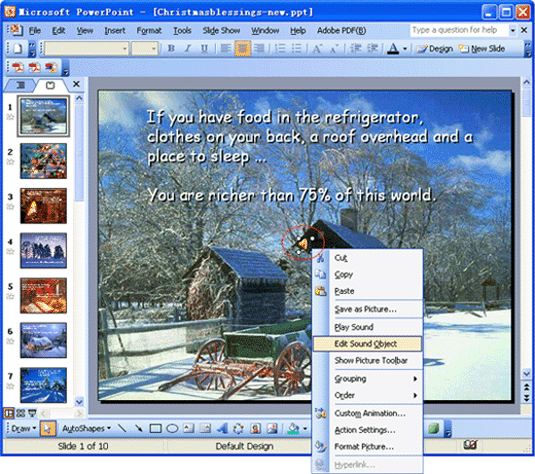
3. Then there would be a dialog box named Sound Option pop-up.
4. Find Sound volume under Play options, click the icon next to Sound volume.
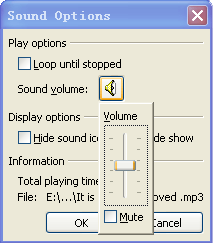
Then you can adjust the volume of the music file you checked so that both of your narrations and the music file and instructions can be heard clearly.
Of course, if you want to convert this perfect PowerPoint file to video or DVD file with perfect quality, you can read Moyea PPT to DVD Burner
 Recommended Product
PPT to DVD Burner Pro
Burn PowerPoint files to DVD or Blu-ray Disc, and convert PPT files to video of any format.
Learn More Free Trial
 Product List
-
For Business/Professor/Individual
- PPT to DVD Burner Pro
- PPT to Video Converter
- PPT to DVD Burner Lite
- PPT4Web Converter
- DVD SlideShow Builder Deluxe
- PPT to DVD Education
- PPT to Video Education
For Education
PowerPoint tips- How to Set Background Music for a PowerPoint File?
- How to Set Background picture for a PowerPoint File?
- How to adjust the sound volume of the music in PowerPoint file?
- How to make PowerPoint which contains video clips easier distribution?
- What resolution should I make my images for PowerPoint slide shows?
- How to compress image files in PowerPoint?
- How to reduce the size of your PowerPoint file?
- What is PowerPoint? What are those in a DVD?
- How to insert a Movie (or video) into PowerPoint 2003?
- How to insert SWF into PowerPoint?
- How to play YouTube video in PowerPoint?
- How to insert a video into PowerPoint 2007?
- How to Play a Sound across Multiple Slides in PowerPoint?"
- How to rip audio file from PowerPoint?
- How to make great PowerPoint slideshow?

