Burn PPT to DVD - Convert PPT to Video
- English
- Deutsch
- français
- español
- italiano
- português (Brasil)
- русском
- 日本語
- 한국어
- Türkçe
- Dansk


Tutorial of Moyea PPT to Video Converter
PowerPoint to Video Conversion Tutorial
Moyea PPT to Video Converter is an excellent conversion tool designed to convert PowerPoint to video in all fashionable formats (e.g. AVI, FLV, WMV, MOV, MP4, MPEG, VOB, 3GP, 3G2, DV, etc). It is easy to use and has no limitation on such conversion. This program enables you to preserve every original element like animation, movie clip, audio file and transition time in the new file. Apart from that, any piece of music is allowed to add to the original video/audio files within your slides for conversion.
To help realize perfect output, this PPT to video converter has set the default transition time. It also permits you to re-add any sound for conversion regardless of the original audio tracks. The flexible option list of aspect ration brings you great fun from getting in. In addition, advanced settings for the audio and video parameters can perfectly meet your demands.
After knowing the powerful functions of this PowerPoint to video converter, you may worry to desire how to get these functions by using this software. Then to meet this requirement, this tutorial is to show you step-by-step description about how to Use Moyea PPT to Video converter to get the best effects from the PowerPoint to video converter.
Just follow the steps below:
Step 1: Install and Launch Moyea PPT to Video Converter

Step 2: Add PowerPoint Files
After launch Moyea PPT to Video Converter, you can click "Add" button or "File" menu > "Add" option to add PowerPoint file to the program.
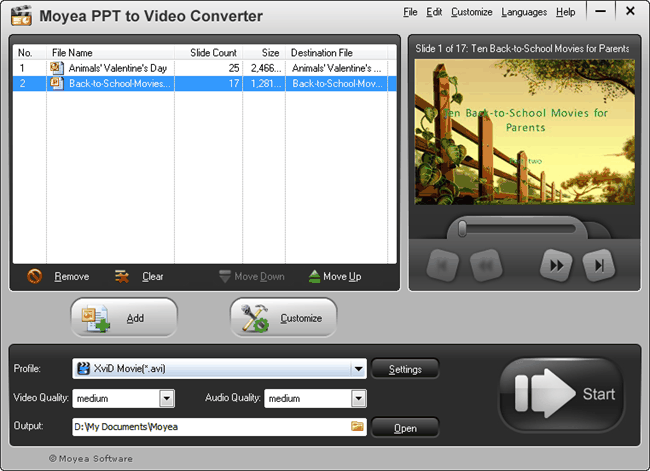
Then you can hit the button under the view screen, click the go-on button, and preview the original PowerPoint slides. Select one format FLV, MPEG, MOV, MP4, AVI, 3GP, or 3G2, etc. for uploading to video share sites like YouTube; choose MP4 compatible with Portable Player like iPod, iPad, iPhone, PSP, Zune, Apple Tv, etc. for playing PowerPoint file; check 3GP, or 3G2 for Portable Mobile Phone viewing PowerPoint file; choose MPEG, AVI, or VOB for third-party recorder to record to DVD disc. From the drop-down bar, you can get what you want. Then specify where to save the ripped movies by selecting from output folder.
Step 3: Audio & Video settings
Click "Settings" button next to "Profile", you can execute advanced settings about format style, profile, audio and video parameters.
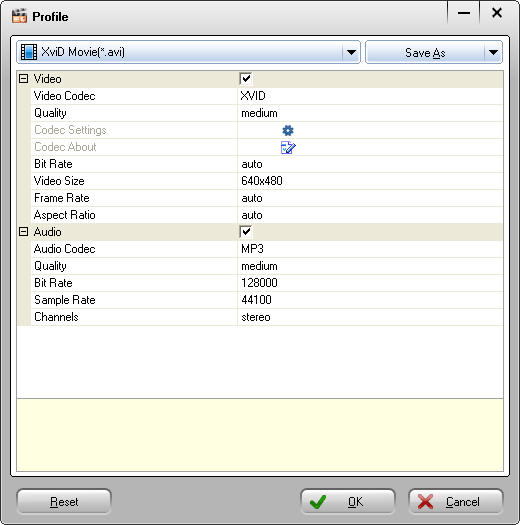
Click "Settings" button to make advanced settings for audio and video parameters like video codec, video size, bit rate, frame rate, and audio codec, bit rate, sample rate and channels to meet your specific needs. But please note that high bit rate and frame rate would result in a high quality and large output size; while low bit rate and frame rate would lead to a low quality and small output size. Besides, large video size would also lead to a large output size.
Note: Please note that the "Profile" would change in accordance with the change of format "Style".
Step 4: Customize Output Effects
After specify output format, you can click "Customize" button to custom your output FLV or MP4 file. This step contains Presentation, Conversion and Watermark.
Presentation:
Under Presentation, there are four sub-tabs: Timing, Music, Audio and Slide.
Timing

You can specify a default transition time between slides playing. After specifying, you can click "As Default" to specify this value as default.
But please note that if you have set slide transition time between slides in your presentations, the above settings will not take effect. To get a perfect result, it is recommended to set slide transition time in the PowerPoint presentation.
Music

Click  to add background music to the PowerPoint file as the audio file for conversion. And there is no amounts limitation of music to add. You also can click
  to delete the added music.
Audio

Check the box to ignore the audio in original PowerPoint Presentation. But please note that if you check this option, the audio tracks in this presentation will be ignored. This option only effects on the current checked presentation.
Of course, if you do not set to ignore the original audio in PowerPoint Presentation, this PPT to Video converter would auto combine the newly added music file with the original video & audio file in order for conversion to the output video file.
Slide

Keep the aspect ration of slides. The default value is to check this option; you can uncheck it by clicking the box.
Conversion

Mute while conversion: Check to make sure that the audio file is muted when converting the PowerPoint file.
Output File Exist: If the same names file exists in the same output folder, you are asked to choose either rename or override it.
Watermark:
Click Watermark tab and jump to the Logo & Video Layout interface.
Add logo(s)

Add logo file(s): Click  to add an image from your hard drive. Then you can see the image on the preview panel. You can drag to place it anywhere within the panel or drag its border to zoom in or out.
Alpha: Drag the slider to set an alpha value for the logo you've added.
Enable Transparent Color (This function enables you to remove all pixels of a certain color from the image.)
Set the color that you want to remove: click  to select a color or click
  to select a color from the selected image:

Tolerance: Drag to set a value of tolerance, i.e. to clear relative pixels of the selected image.
Set video layout

Margin Size: Drag the slider to set the margin size.
Margin Fill: Three methods are offered to fill the margin.
Method 1: Pick a picture from the template base.
Method 2: Adjust the colors. You can adjust the current angle and position of the margin via the cross fades of three different colors.
Method 3 Take an image from your local drive.
Step 5: Convert
Once all settings are completed, you can click the convert button to start conversion.
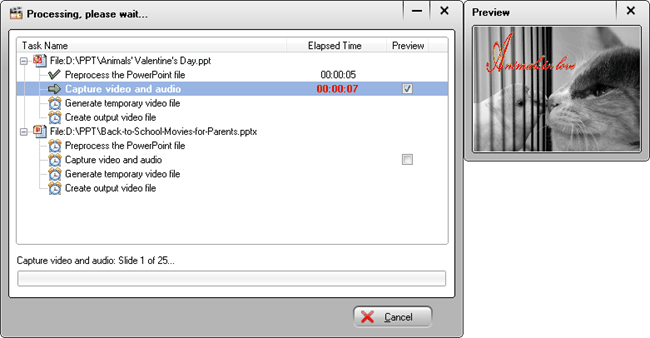
This interface clearly displays the steps of the PowerPoint file conversion, so you can know the progress of the conversion for each PowerPoint file. You can also check the "Preview" box to watch the output video real-time while conversion.
After conversion, the program will automatically open the folder which saves the converted video file.
Welcome to use Moyea PPT to Video Converter!


 Recommended Product
PPT to DVD Burner Pro
Burn PowerPoint files to DVD or Blu-ray Disc, and convert PPT files to video of any format.
Learn More Free Trial
 Product List
-
For Business/Professor/Individual
- PPT to DVD Burner Pro
- PPT to Video Converter
- PPT to DVD Burner Lite
- PPT4Web Converter
- DVD SlideShow Builder Deluxe
- PPT to DVD Education
- PPT to Video Education
For Education
 Customer Testimonial
Moyea PPT to Video converts our PowerPoint ads to YouTube video, and converts the gloomy business to a promising future. Now more traffic is coming from YouTube to our company website, done at a total cost of no more than $50!
--- Paul

