Burn PPT to DVD - Convert PPT to Video
- English
- Deutsch
- français
- español
- italiano
- português (Brasil)
- русском
- 日本語
- 한국어
- Türkçe
- Dansk


F.A.Q about Moyea PPT to Video Converter
Frequently Asked Questions about Moyea PowerPoint to Video Converter
Frequently Asked Questions
- Can this program keep all the originals of my PPT file, like preset timings, animations, video and audio, all transitions?
- Do I need to have Microsoft PowerPoint installed on my computer?
- Does this PPT to video converter support batch conversion?
- Can the PPT to Video Converter work with Windows 8 and support PowerPoint 2013?
- Can I add my own logo for my video?
- What to do when the PowerPoint files failed to convert?
- What can I do with this Moyea PPT to Video Converter?
- How should I do if I want to upload the PowerPoint file to YouTube?
- Why does the audio file in the original PowerPoint file not converted?
- Can I add background music, and how many at most?
- Is there any conflict between the newly added music files with the original video and audio files for conversion?
- The output file size is too large. How can I get a smaller file?
- What's the difference between trial version and registered version?
- What can I do if I lost my register key?
- What's the difference between Personal license and Commercial license?
- Why does the output video have no sound?
- The output video is upside down. What can I do?
- How can I get better output video quality?
- Exception occurred while importing the PowerPoint file with "ERROR: [EOleException]: Unspecified error."
- What to do when the process of converting PowerPoint 2010 gets stuck?
1. Can this program keep all the originals of my PPT file, like preset timings, animations, video and audio, all transitions?
Generally, Moyea PPT to Video Converter is capable of keeping all the PowerPoint originals, e.g., animations, transitions, video clips and sound tracks. In case your PPT file is rather complicated, and that causes loss of an effect, please report the error file to us via emailing to support@moyeasoft.com.
2. Do I need to have Microsoft PowerPoint installed on my computer?
Currently Moyea PPT to DVD Burner/PPT to Video supports to work with Microsoft PowerPoint and PPT Viewer.
3. Does this PPT to video converter support batch conversion?
Yes, it does. And there are no any restrictions on the number of PowerPoint files imported into this converter.
4. Can the PPT to Video Converter work with Windows 8 and support PowerPoint 2013?
Yes, Moyea PPT to Video Converter is highly Windows-compatible software. It can run on Windows 8 smoothly. It can help convert PowerPoint 2013 presentations to video.
5. Can I add my own logo for my video?
Yes. You could add images as watermark via "Logo" function in the program for your output video to brand and protect your presentations.
6. What to do when the PowerPoint files failed to convert?
Please provide us the detail information of the failure to support@moyeasoft.com so that we could check about the problem:
1) Was there any error message prompted?
2) Your OS, PowerPoint version No., Program version No.
3) Check whether you can convert another file successfully. If you meet the problem only in this file, you can send us the original PPT file for our further testing.
If your file is within 300MB, you can transfer your PPT file via Microsoft Skydrive address: https://skydrive.live.com (User name: upfile88@hotmail.com Password: goodluck88)
PS: If there is audio or video embedded in your PPT file, please also send us the video or audio.
7. What can I do with this Moyea PPT to Video Converter?
With this converter, you can convert PowerPoint to video in all fashionable formats including FLV, AVI, MOV, MP4, MPEG, WMV, and more. Then you can easily view your presentation via some portable devices like iPod, iPad, iPhone, PSP, Apple TV, mobile phones, etc. Besides, the converted video file can be published on YouTube, Facebook and blogs.
8. How should I do if I want to upload the PowerPoint file to YouTube?
It's easy! Use Moyea PPT to Video Converter to convert your PowerPoint file to MOV, MP4, AVI, WMV, or FLV video that is suited for YouTube. Then follow the instructions on YouTube to put your converted video there.
9. Why does the audio in the original PowerPoint file fail to be converted?
As to this issue, please make sure that the source audio file is saved in the same folder as the PowerPoint file for conversion.
10. Can I add background music? And how many pieces at most?
Yes, you can add as much music as you like, for there is no quantity limit to sounds inserted in a PowerPoint file for conversion.
11. Is there any conflict between the newly added music files with the original video and audio files for conversion?
Feel free to add background music, even though there are audio files in the original PowerPoint. Because this program can combine newly added music files with the original video and audio for conversion in order. It also allows you to check to ignore the original audio files for conversion.
12. The output file size is too large. How can I get a smaller file?
The output file size depends on the duration of the movie, the video bit rate and the codec you select for the output file. You can set a lower bit rate for a smaller file size. Please notice that the quality of the output file will be less desirable with lower bit rate, but you can select a proper bit rate after some tests of the conversion.
13. What's the difference between trial version and registered version?
There are no functional differences between the two versions; however, the trial version will leave a watermark to all the output videos files.
14. What can I do if I lost my register key?
You can contact us with your Order No. and your registered email address used when purchasing via support@moyeasoft.com. You will retrieve it after the information is confirmed by our support team.
15. What are the differences between Personal license and Commercial license?
With Personal License, you can use the software for personal and non-profit, non-commercial purposes.
With Commercial License, you (individual) can use the software in a business, academic, or government for any purpose.
16. Why does the output video have no sound?
As to this issue, please make sure that the source audio file is saved in the same folder as the PowerPoint file for conversion.
And you could try to set to other Audio codec in "Settings->Audio->Audio Code" if it's available.
17. The output video is upside down. What can I do?
Please check the option "Customize - Conversion - Vertical Clip" in the PPT to Video converter program and then try to convert, and see if it displays well.
18. How can I get better output video quality?
You could try the following tips:
1. Click the "Settings" button to change Video settings, like higher bit rate and larger video size.
2. Close all other applications during the conversion.
Besides, PC of better configuration might produce better output quality.
19. Exception occurred while importing the PowerPoint file with "ERROR: [EOleException]: Unspecified error."
For PowerPoint 2007 or PowerPoint 2010 users to import PowerPoint files for conversion, if the following pop-up window appears with the prompt "Exception occurred while importing the PowerPoint file: (PowerPoint filename) ERROR: [EOleException]: Unspecified error", the most probable reason is that the Visual Basic for Application (VBA) of Office Shared Features is not properly installed during the Office 2007 or Office 2010 installation.

To fix the problem, you need to reinstall the Office and add the feature:
1. Start Office installation, choose “Add or Remove Features” and enter the installation options interface. Unfold the “Office Shared Features” and you will see “Visual Basic for Applications” below. Select it and choose “Run from My Computer” from the drop-down list. Then click “Continue” to complete the installation.
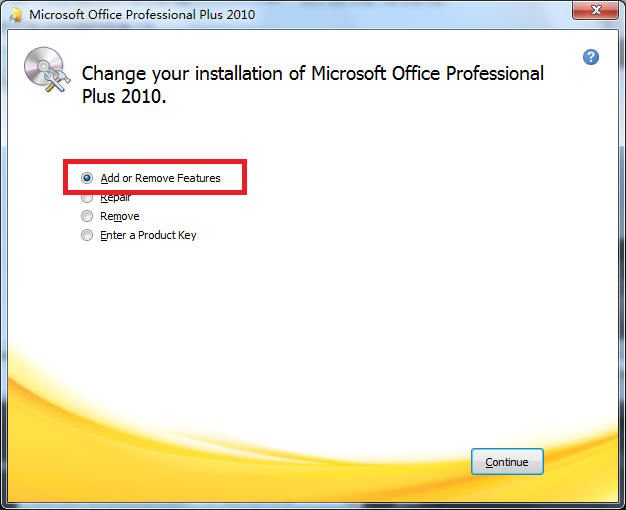

2. When the Office reinstallation is finished, you can import the PowerPoint files to Moyea PPT to Video Converter successfully.
20. What to do when the process of converting PowerPoint 2010 gets stuck?
When you find the PPT Converter spends much more time than it is supposed to be on converting a certain slide of PowerPoint 2010 (just as the following picture shows), there is a great chance that the conversion process gets stuck.

To fix the problem, you need to cancel the conversion process and change the animation options of the slides. Follow those steps below.
1. Open the PowerPoint file and choose the slide that makes the conversion process get stuck. Then click the "Animations" tab in this interface.

2. Click "Animation Pane" button under the "Animations" tab to expand the "Animation Pane."

In the "Animation Pane", all the animations in the slide will be listed as shown below.

3. Highlight the first and last animations of the slide to check if the "After Previous" option is selected in the drop-down menu of "Start".

4. If either animation is set to start "After Previous", you should change the timing options by following the steps from 6 to 7.
5. Right click the animation and select "Show Advanced Timeline" to display the advanced timelines.

6. Move the mouse to the triangle icon next to the name of the animation. Just as is shown in the picture, a time value will be provided in a form similar to "Start: 6s". Remember the time value.

7. Later select "Start With Previous" from the drop-down menu of this animation.

8. Drag the triangle icon to the right until the time value reaches the same one we have mentioned above.

9. Use the same method to change the "Timing" options of both the first and last animations of the slide.
10. Change the first and last animations of the slides which are next to the slide that gets stuck with similar steps.


 Recommended Product
PPT to DVD Burner Pro
Burn PowerPoint files to DVD or Blu-ray Disc, and convert PPT files to video of any format.
Learn More Free Trial
 Product List
-
For Business/Professor/Individual
- PPT to DVD Burner Pro
- PPT to Video Converter
- PPT to DVD Burner Lite
- PPT4Web Converter
- DVD SlideShow Builder Deluxe
- PPT to DVD Education
- PPT to Video Education
For Education
 Customer Testimonial
Moyea PPT to Video converts our PowerPoint ads to YouTube video, and converts the gloomy business to a promising future. Now more traffic is coming from YouTube to our company website, done at a total cost of no more than $50!
--- Paul

