Last updated on 2026-04-21, by
What is a Region 1 DVD? How to Play Region 1 DVD in Other Regions?
Summary:
Region 1 DVDs are designed for specific regions and may not work on regular DVD players due to region restrictions. You can play or convert them using region-free players or DVD ripping tools to remove these limits and watch them anywhere.
Mostly created for certain countries like the United States and Canada, Region 1 DVDs usually won’t play on conventional DVD players worldwide. You are absolutely not alone if you’ve ever attempted to play one and received a "region error" notice. It’s a problem that many people find confusing, especially when they order DVDs online or travel across regions.
This article will explain what a Region 1 DVD really is, why it is limited, and how you can still play it in other regions without problem. We’ll also look at simple solutions that can help you watch your discs on any device.
MenuCLOSE
1. What is a Region 1 DVD?
A Region 1 DVD is a disc that is made mainly for playback in the United States, Canada, and a few U.S. territories. DVDs use region codes to restrict their playback. Region 1 is one of the most commonly used codes. A Region 1 DVD might not work on a player from another region, and you may encounter a region error when you try to play it in other areas. The system controls distribution rights together with release times in different countries that use this system.
2. How to Check If a Disc is Region 1?
There are a few easy ways to find out if a DVD is Region 1.
Step 1: Region 1 DVDs typically display their region information through either a Region 1 designation, which appears on their cover or disc label.
Step 2: Do some inspection on the packaging contents information. The region code occasionally appears in small print, which is located beside the barcode or inside the technical specifications section.

Step 3: Or you can use media info tools. If you insert the disc into a computer, software tools like DVD analysers or media players can show the region code in the disc metadata.
3. How to Change Your DVD-ROM Drive’s Region 1 Setting to Other Region Code?
Another thing you can do is simply change the region setting of DVDs. But remember, these settings are restricted and strongly managed by the manufacturer. You can only change these settings a few times. Here is how to do it.
Step-by-Step Guide to Change Your DVD-ROM Drive’s Region
Step 1: Pop a DVD into your drive from another region on your Mac, such as a Region 1 DVD.
Step 2: If the wrong region is detected, the drive should prompt you to change it.
Step 3: Next, you need to select the region that matches the DVD you inserted and confirm the change.

Step 4: Next, try to play again, and if no prompt appears and the DVD plays normally, your drive is already set to a compatible region.
Once the drive reaches its region-change limit, it just stops there. No more switching. If a disc does not match the current region setting, the drive will usually eject it.
Note: Here, please remember one important thing. This function is built into the manufacturer’s system, but only for occasional playback needs. You get a limited number of changes, so it is better not to keep flipping regions back and forth. After the limit is reached, the drive stays in the last region you set.
4. How to Play Region 1 DVD in Other Regions with a DVD player?
If you can’t get a Region 1 DVD to work on your player, then the best way to overcome the restrictions is to use a region-free DVD player program. They are not affected by DVD region restrictions and will play DVDs from anywhere without needing to change the region setting in your DVD drive. In this case, you will not have to change the region code or alter drive configurations manually.
Some commonly used region-free players include:
- Leawo Blu-ray Player (recommended)
- VLC Media Player
- 5KPlayer
Among them, Leawo Blu-ray Player is often preferred because it’s free, easy to use, and supports DVDs, Blu-rays, ISO files, and even HD video playback in one place. It also removes the stress of region restrictions completely, so you don’t need to worry about compatibility issues.
How to Play Region 1 DVD Using Leawo Blu-ray Player
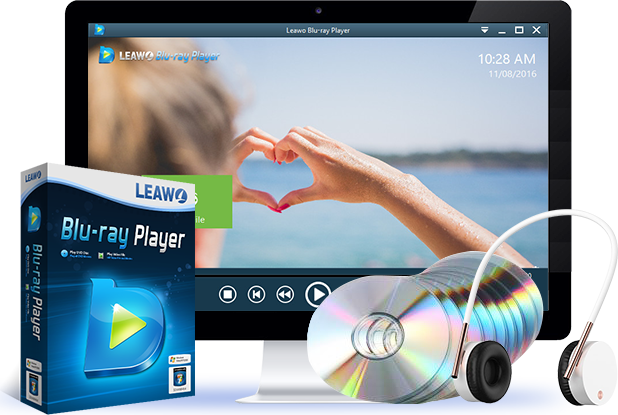
Step 1: Download and install Leawo Blu-ray Player on your Windows or Mac computer. Open the program after installation.
-
A 100% free Blu-ray media player combo that offers totally free media playback solutions for 4K Blu-ray, Blu-ray, DVD, video and audio playback. It could play back 4K Blu-ray, Blu-ray and DVD discs regardless of disc protection and region restrictions, without any quality loss and subscription required.
Step 2: Load the Region 1 DVD on your PC’s disc drive. It takes just a couple of seconds for your computer to detect the DVD.
Step 3: Launch Leawo and select “Play Disc” from the software menu that pops up on the interface.

Step 4: Select your Region 1 DVD from the dropdown list and play the movie right away.
Step 5: Your movie begins to play smoothly; no region-related warning message or prompt comes across your screen.
5. How to Permanently Convert Region 1 DVD to Region-free Files?
If you truly wish to avoid your DVDs’ region restrictions, then the most effective way is to convert (rip) your DVD from Region 1 to digital files. After conversion, you can watch your DVD content on any device, anytime, anywhere. There are several DVD ripping tools available for this purpose, such as:
- Leawo DVD Ripper
- WinX DVD Ripper
- HandBrake
- DVDFab DVD Ripper
Among these, Leawo DVD Ripper is a popular choice because it is simple to use and supports many output formats like MP4, MKV, and MOV.
How to Rip a Region 1 DVD Using Leawo DVD Ripper?
Step 1: Open Leawo DVD Ripper and go to the Convert section. Click “Add Blu-ray/DVD” and select your DVD or folder from your drive. The software will scan and load the content automatically.

Step 2: Now, click the format dropdown box and pick out the output type you want. MP4 tends to be the most common format as it will work on pretty much any device.

Step 3: If needed, hit the Edit icon, which appears to the right of the format. Here, you will be able to select the quality of the video, resolution, change soundtracks if present in the DVD, and save subtitles.
Step 4: Click the large Convert button to begin ripping the DVD. Choose a folder where you want to save the file, then wait for the process to finish. You can stop it anytime if needed.

Once done, your Region 1 DVD will be saved as a normal video file, meaning it is now fully region-free and playable anywhere without restrictions.
6. FAQs
Can Leawo Blu-ray Player Play DVDs of Other Regions?
Yes, it can. Leawo Blu-ray Player is region-free, so it can play any DVD from any region (including Region 1) without showing region error messages. Simply load the DVD Disc into the player and play it; it will play automatically.
Why does my Region 1 DVD not play on my DVD player?
You will see this message when your DVD isn’t compatible with your DVD player. Your DVD player is likely configured to a different region code. The majority of DVD drives and players are locked to one region; thus, they will refuse to play any discs from other regions.
Can Blu-ray Player Play Region 1 DVD?
Yes, most Blu-ray players can play Region 1 DVDs. They are backward-compatible with DVDs and typically ignore or support Region 1 without issues. And if it doesn’t work you can always turn to Leawo Blu-ray Player for help.
-

How to Play AVI Files on Mac and Windows?Patrick Murray/2026-05-19
-

What is a Region 1 DVD? How to Play Region 1 DVD in Other Regions?Patrick Murray/2026-04-21
-

How to Play DVDs on VLC Media Player?Patrick Murray/2026-03-20
-

Best Region-free DVD player Software for Mac & WinPatrick Murray/2026-02-24
-

Does the Wii Play DVDs? Safe Ways to Watch Movies on WiiPatrick Murray/2026-01-22
-

Can the PlayStation 5 Play 4K Blu-ray Discs? A Comprehensive ReviewPatrick Murray/2025-12-17
-

Best BDMV Player & How to Play BDMV FilesPatrick Murray/2025-12-17
-

Can VLC Play Blu-rays & How to Play Blu-rays with VLC?Patrick Murray/2025-12-17
-

How to Copy Blu-rays to PC Without Sacrificing QualityPatrick Murray/2025-09-15
-

How to Copy DVDs Without Losing QualityPatrick Murray/2025-08-20
-
How to Play AVI Files on Mac and Windows?Patrick Murray/2026-05-19
-

How to Watch Blu-rays and DVDs for Free on Mac & PCPatrick Murray/2025-04-21
-

Best DVD Decoder Download Free for Windows XP/11/10/8/7Vinho/2023-11-14
-

Best 6 ISO Players for Seamless ISO File PlaybackPatrick Murray/2025-06-23
-

What’s the Difference? – DVD-R vs. DVD+R vs. DVD-RW vs. DVD+RPatrick Murray/2025-02-21
-

How to Download and Burn the Pirate Bay Torrents to DVDMax Will/2025-04-21
-

10 Best DVD Rippers to Convert DVD to VideoAugust/2023-11-20
-

Best DVD to MP4 Converters to Convert DVD to MP4 [2023]Cassie/2023-11-14
-

[MP4 to DVD] Top Ways to Convert MP4 to DVD in 2023Cassie/2023-11-14
-

How to Rip and Convert Blu-ray to MP4 on Windows & MacPatrick Murray/2025-04-21